





 Why Trust Us?
ToProxyLab has been testing proxy services since 2025. We pay for most plans ourselves, and when a provider gives us test traffic we say so in the review — free traffic buys a place in the testing queue, nothing else. Every provider goes through the same speed, uptime and fraud-score checks, and we publish the real numbers, including the bad ones. A rating cannot be bought. Learn who we are and how we review proxies.
Why Trust Us?
ToProxyLab has been testing proxy services since 2025. We pay for most plans ourselves, and when a provider gives us test traffic we say so in the review — free traffic buys a place in the testing queue, nothing else. Every provider goes through the same speed, uptime and fraud-score checks, and we publish the real numbers, including the bad ones. A rating cannot be bought. Learn who we are and how we review proxies.
The question “how do I find my proxy server address and port” comes up all the time when you’re setting up a new device, troubleshooting network issues, or just checking your current connection settings. A proxy server sits between your device and the internet, and without the right IP address and port number, you simply can’t connect.
In this guide, I’ll walk you through every method for finding your proxy server: from Windows 10 and 11 system settings to checking on Android phones and Smart TVs. I’ll show you how to find your proxy hostname, discover the port, and verify your connection is working using online tools.
This guide is useful whether you’re new to proxy setup or an experienced user who needs to quickly find settings on an unfamiliar device.
What Is a Proxy Server Address and Port: The Basics
Before we dive into finding your settings, let’s make sure you understand what a proxy server address and port actually are. These are the two essential pieces of information you need to connect to any proxy.
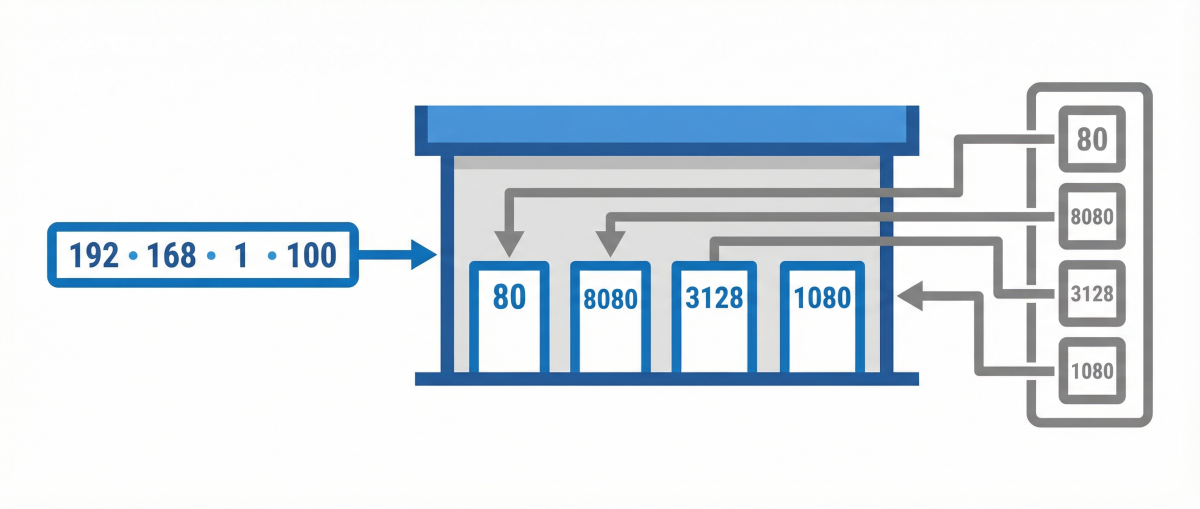
Proxy server address (also called the IP address or hostname) is the unique identifier of the server on the network. It looks like a sequence of numbers separated by dots, for example: 192.168.1.100 or 185.123.45.67. Sometimes a domain name is used instead of an IP, which is called the proxy hostname, like: proxy.example.com or en.proxyprovider.net.
Proxy server port is a numerical identifier for the “entry point” on the server. Think of the IP address as a building’s street address, and the port as a specific apartment number. Standard ports vary depending on the proxy type. HTTP proxies typically use ports 80, 8080, 3128, or 8888. SOCKS5 proxies usually run on port 1080. However, an administrator can configure any port, so there’s no universal value.
Proxy server format is standardized and looks like this: IP:port, for example: 185.123.45.67:8080. If authentication is required, username and password are added: user:password@185.123.45.67:8080. This is exactly how proxy data is entered in most programs and settings.
It’s important to understand the difference between the proxy’s IP address and your current IP. When you connect through a proxy server, websites see the proxy’s IP, not your real address. That’s the whole point of the technology.
Proxy Types and Their Standard Ports
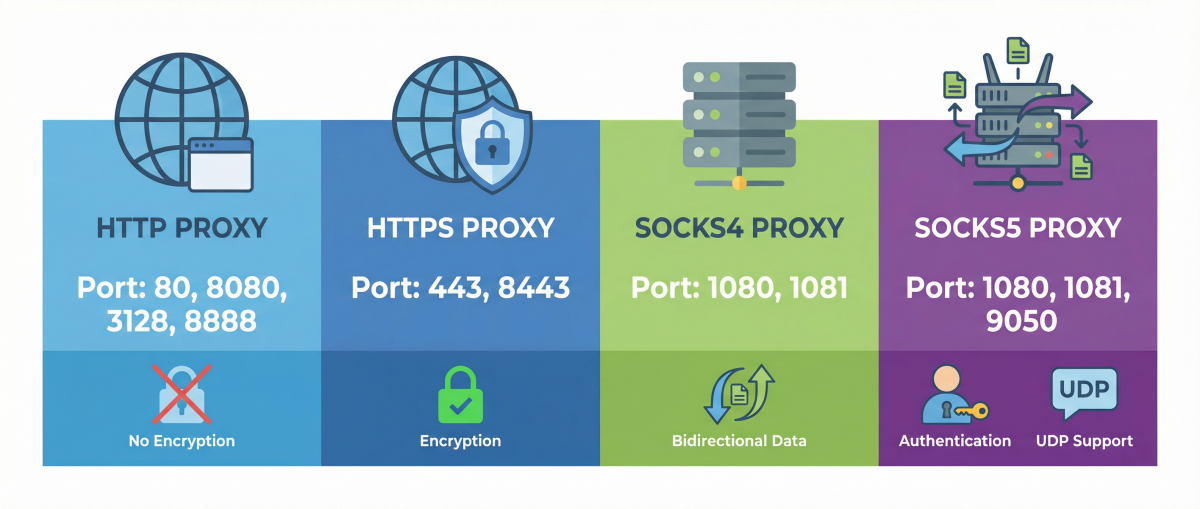
| Proxy Type | Standard Ports | Features |
|---|---|---|
| HTTP | 80, 8080, 3128, 8888 | For web browsing, no encryption |
| HTTPS | 443, 8443 | SSL/TLS encryption, secure browsing |
| SOCKS4 | 1080, 1081 | Works with any traffic, no authentication |
| SOCKS5 | 1080, 1081, 9050 | Authentication, UDP traffic, universal |
Pro tip: If you don’t know your proxy type, start checking with port 8080 (HTTP) or 1080 (SOCKS5). These are the most common ones. When you buy a proxy from a provider, all the details including address, port, and protocol type are provided in your dashboard.
How to Find Your Proxy Server and Port on Windows 10 and 11
Windows gives you several ways to view your current proxy settings. Let’s go through all the options from the graphical interface to command line.
Method 1: Through System Settings (Easiest Way)
This is the quickest way to check if a proxy server is configured on your computer and what its settings are.
For Windows 10:
- Press Win + I to open Settings.
- Go to “Network & Internet.”
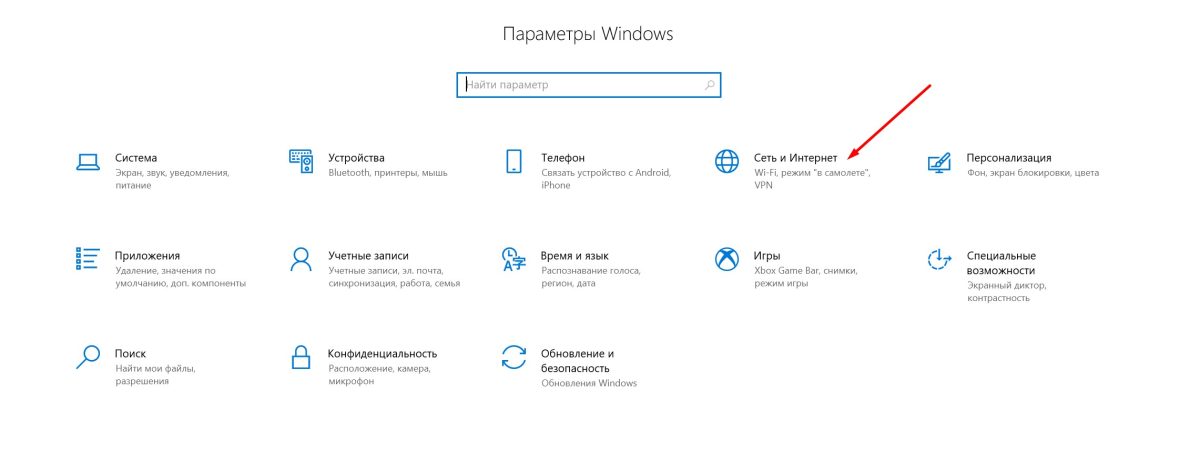
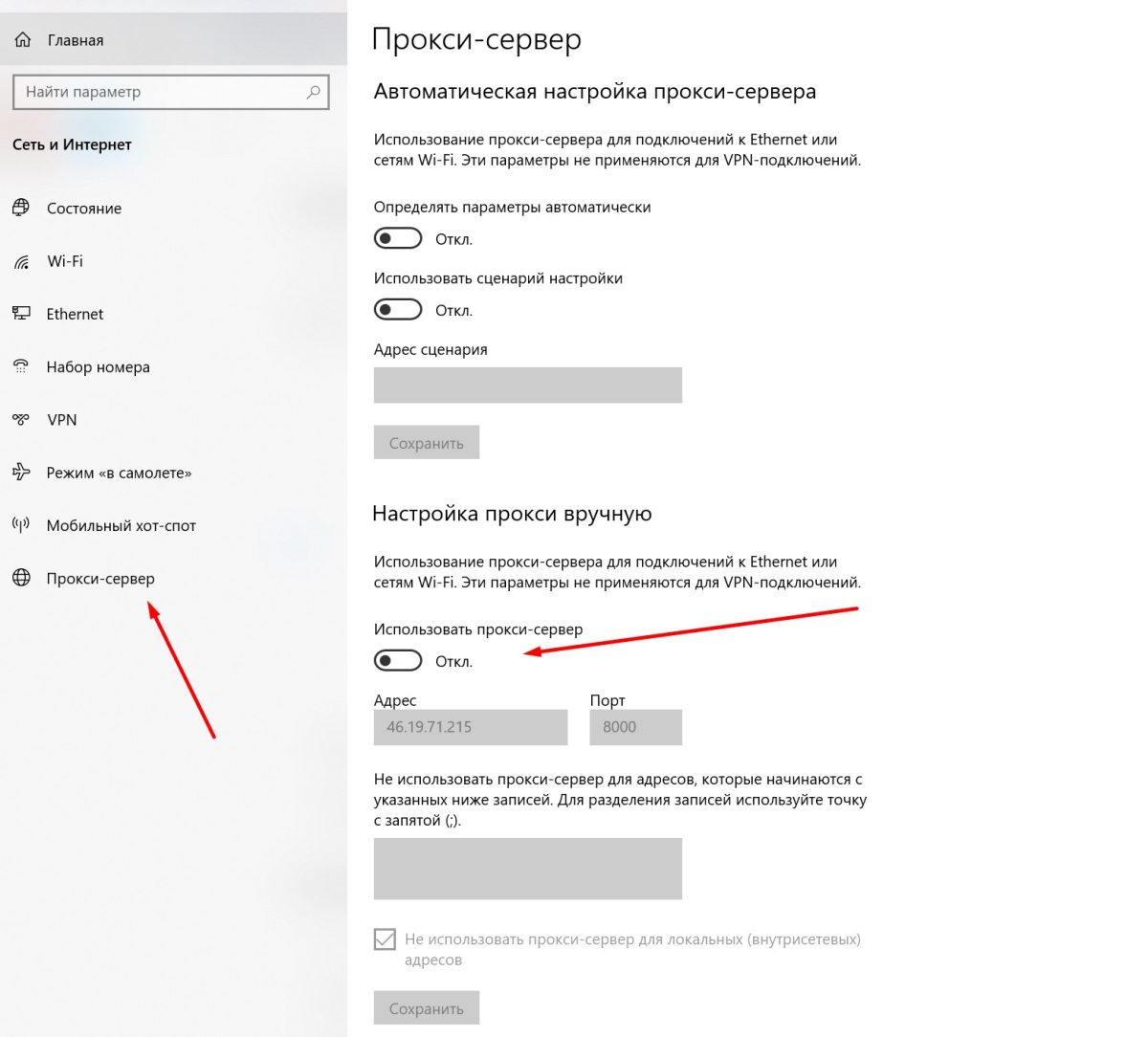
- Select “Proxy” from the left menu.
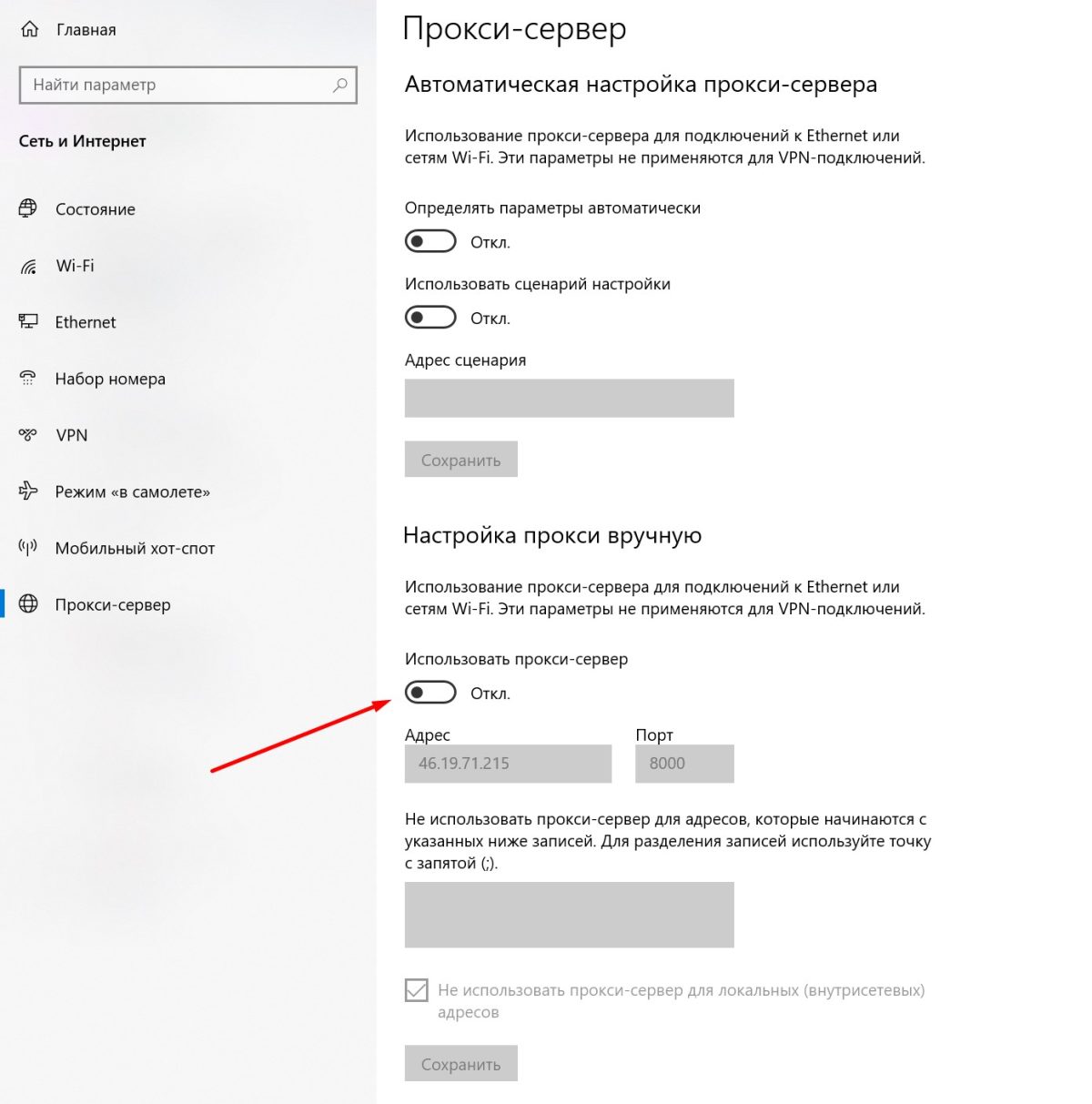
- Under “Manual proxy setup,” you’ll see a toggle. If it’s on, the proxy server address and port are displayed below.
For Windows 11:
- Open Settings with Win + I.
- Select “Network & Internet” from the sidebar.
- Click “Proxy.”
- Check the “Use a proxy server” section. If enabled, the proxy data (IP and port) will be displayed right in this window.
If the toggle is off and the fields are empty, it means no proxy is configured at the system level. However, this doesn’t guarantee you’re not using a proxy: one might be set up in a specific browser or application.
Method 2: Through Control Panel (Classic Approach)
This method works on all Windows versions and lets you view proxy settings for Internet Explorer and applications that use system settings.
- Open Control Panel (type it in Windows search).
- Go to “Network and Internet,” then “Internet Options.”
- In the window that opens, go to the “Connections” tab.
- Click the “LAN settings” button.
- Under “Proxy server,” you’ll see the current settings: address and port, if configured.
Here you can also see if automatic settings detection or an auto-configuration script (PAC file) is being used.
Method 3: Through Command Prompt
For power users and admins, the command line offers a quick way to check proxy settings.
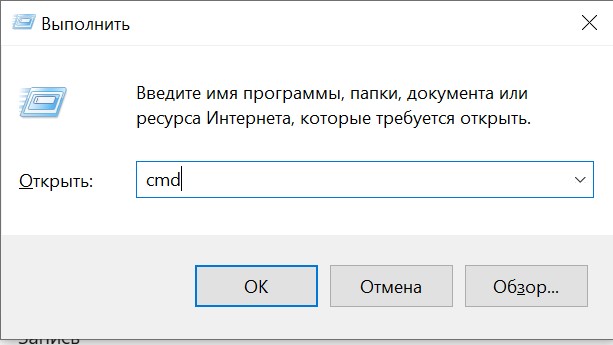
Open Command Prompt (Win + R, type cmd) and run this command:
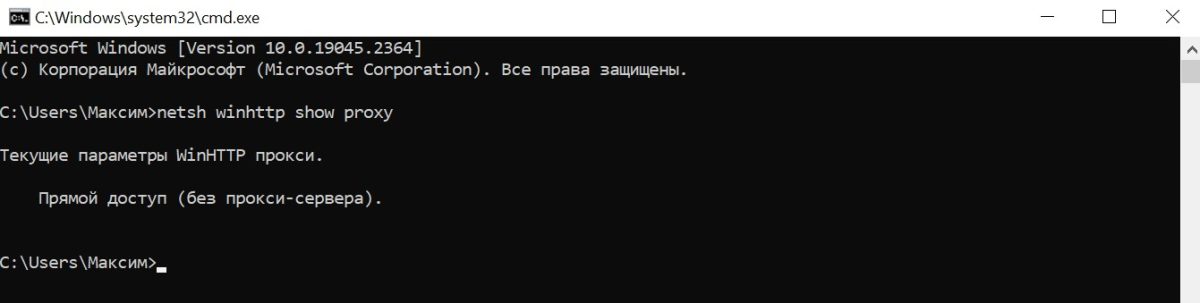
netsh winhttp show proxyThe result will show your current WinHTTP proxy settings. If no proxy is configured, you’ll see “Direct access (no proxy server).”
To check environment variables that might point to a proxy:
echo %HTTP_PROXY%
echo %HTTPS_PROXY%
If these variables are empty, no proxy is set through them.
Method 4: Through Windows Registry
Proxy settings are stored in the Windows Registry. To view them:
- Press Win + R, type regedit.
- Navigate to: HKEY_CURRENT_USER\Software\Microsoft\Windows\CurrentVersion\Internet Settings
- Find the ProxyServer parameter. This contains the proxy address and port.

- The ProxyEnable parameter shows the status: 1 means enabled, 0 means disabled.
Tip: Don’t modify registry values unless you have to. For basic checks, the first two methods are plenty.
Method 5: Through Your Browser
Most browsers use system proxy settings, but some allow you to configure their own.
Google Chrome:
- Open chrome://settings/
- Search for “proxy.”
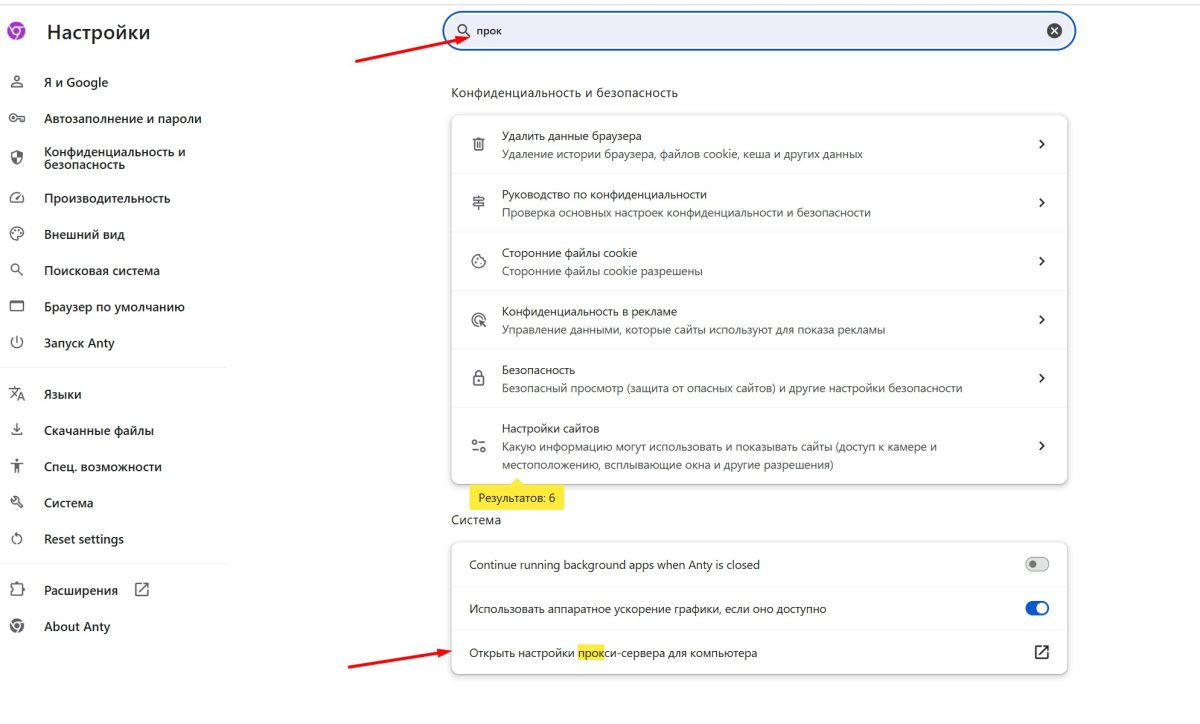
- Click “Open your computer’s proxy settings.” This will redirect you to Windows system settings.
Mozilla Firefox (uses its own settings):
- Open Settings and go to the General section.
- Scroll down to “Network Settings.”
- Click “Settings…”
- Here you’ll see the current configuration: “No proxy,” “Auto-detect,” “Use system proxy settings,” or “Manual proxy configuration” with address and port.
Microsoft Edge:
- Open Settings and go to the System section.
- Click “Open your computer’s proxy settings.”
How to Find Proxy Server on Android Phone
On mobile devices, proxy is configured for each specific Wi-Fi network. Here’s how to find your current proxy settings on an Android phone.
Checking Proxy Settings in Wi-Fi
- Open Settings on your phone.
- Go to “Wi-Fi” or “Network & internet,” then “Wi-Fi.”
- Tap and hold the network name you’re connected to.
- Select “Modify network” or tap the gear icon.
- Expand “Advanced options” or “Advanced settings.”
- Find “Proxy” or “HTTP proxy.”
If it’s set to “None,” no proxy is configured. If “Manual” is selected, you’ll see the “Proxy hostname” and “Port” fields with their current values.
Important: On Android, proxy is configured separately for each Wi-Fi network. If you switch between networks, you need to check proxy settings for each one.
Checking Through Apps
Some apps (Telegram, Firefox, various VPN clients) have their own proxy settings. To check them:
Telegram:
- Open Settings, then “Data and Storage.”
- Select “Proxy Type.”
- If a proxy is configured, you’ll see its address, port, and type (SOCKS5 or MTProto).
Firefox for Android:
- Type about:config in the address bar.
- Search for network.proxy.* parameters.
If you need to set up a proxy on Android from scratch, check out our detailed Android proxy setup guide covering all the ins and outs.
How to Find Proxy Hostname on Smart TV
When setting up Smart TV or Android TV, the question of where to get the proxy hostname often comes up. This is especially relevant for Samsung, LG, Sony TVs, and other brands.
The proxy hostname is either an IP address (like 192.168.1.100) or a domain name (like proxy.provider.com). If you’re buying a proxy from a specialized provider, this information is provided in your account dashboard.
Where to Find Proxy Settings on Smart TV
Samsung Smart TV:
- Press the Menu button on your remote.
- Go to “Network,” then “Network Status.”
- Select “IP Settings.”
- Find the “Proxy server settings” section.
LG Smart TV:
- Open Settings, then “Network.”
- Select your current connection (Wi-Fi or Ethernet).
- Find “Proxy server” in advanced options.
Android TV (Sony, Xiaomi, TCL, and others):
- Go to Settings, then “Network & Internet.”
- Select the connected Wi-Fi network.
- Open “Advanced options.”
- Under “Proxy,” select “Manual” to view or enter data.
For Android TV: The proxy hostname goes in the “Hostname” field, and the port in a separate “Port” field. If your proxy requires authentication, you’ll need to set it up through your router, since most TVs don’t support proxies with username and password.
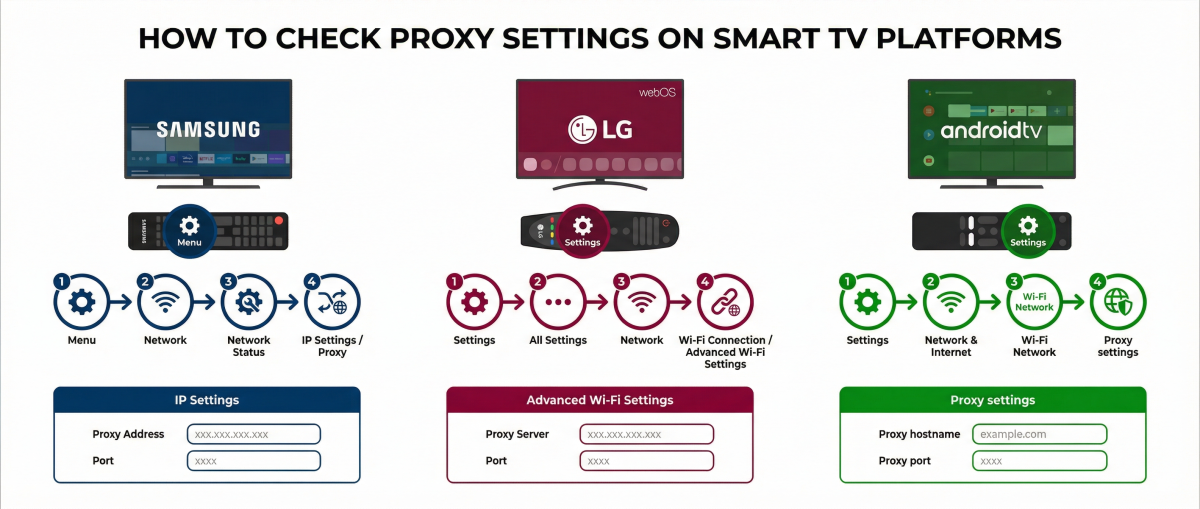
If you’re looking for a working proxy for Smart TV (say, to access YouTube or streaming services), consider residential proxies or ISP proxies, which work great for these purposes.
How to Find Your Router’s Proxy Server
Your router can either act as a proxy or have a connection configured through an external proxy server. To check these settings, you need to access the router’s web interface.
Step 1: Find Your Router’s IP Address
Standard IP addresses for routers from various manufacturers:
| Manufacturer | IP Address |
|---|---|
| TP-Link | 192.168.0.1 or 192.168.1.1 |
| ASUS | 192.168.1.1 |
| D-Link | 192.168.0.1 |
| Keenetic | 192.168.1.1 or my.keenetic.net |
| Xiaomi | 192.168.31.1 |
| Netgear | 192.168.1.1 |
If the standard address doesn’t work, you can find your router’s IP through Windows Command Prompt: type ipconfig and look for the “Default Gateway” line. That’s your router’s address.
Step 2: Log Into Router Settings
- Open a browser and enter the router’s IP address in the address bar.
- Enter your username and password (default values are usually admin/admin or admin/password, shown on the router’s label).
- Find the network settings section: “WAN,” “Internet,” “Network Settings,” or “Connection.”
Step 3: Check Proxy Settings
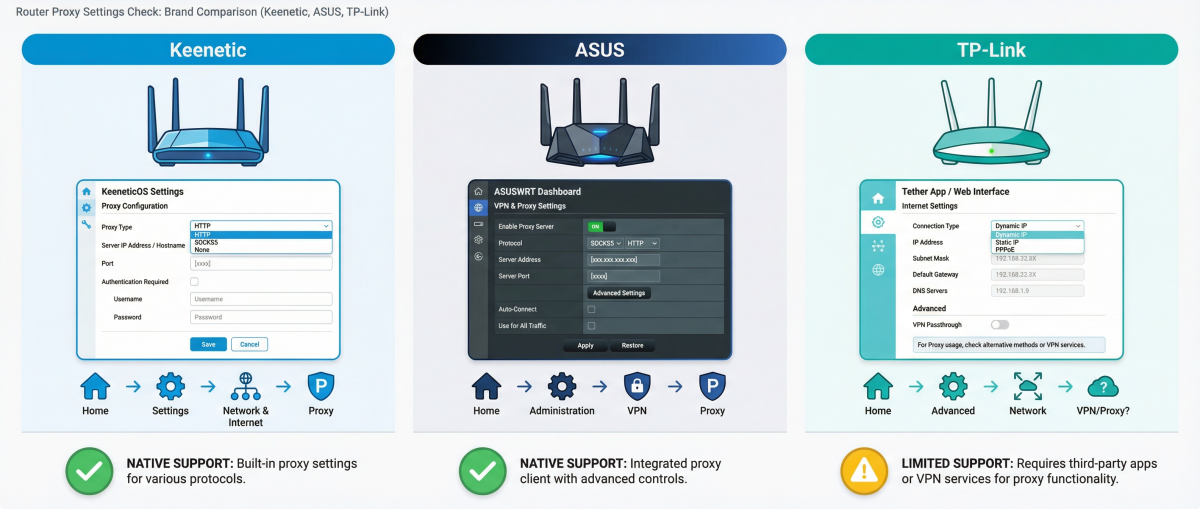
Where proxy settings are located depends on the router model:
Keenetic:
Go to “Other connections,” then “Proxy connections.” All configured proxy connections are displayed here.
ASUS:
“WAN” section, then “Internet settings.” Proxy is configured through Asuswrt-Merlin or OpenWRT firmware.
TP-Link:
Stock firmware usually doesn’t support proxy directly. You’ll need alternative firmware (OpenWRT, DD-WRT).
If a proxy is configured on the router, you’ll see the IP address (or hostname), port, and protocol type. If the section is missing or empty, no proxy is set up.
For more details on setting up proxy on different router models, check out our router proxy setup guide.
How to Check Your Proxy Server Online
If you need to check whether you’re using a proxy right now and find out its settings, online services can help.
Services for IP and Proxy Detection
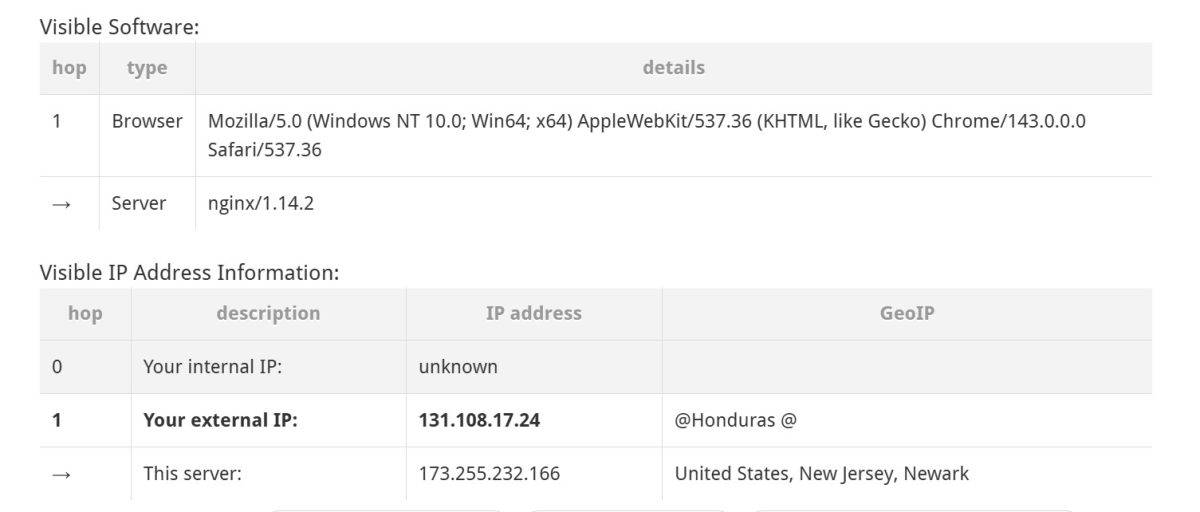
2ip.ru shows your current IP address, ISP, and country. If the IP differs from what your internet provider assigned, you’re using a proxy or VPN.
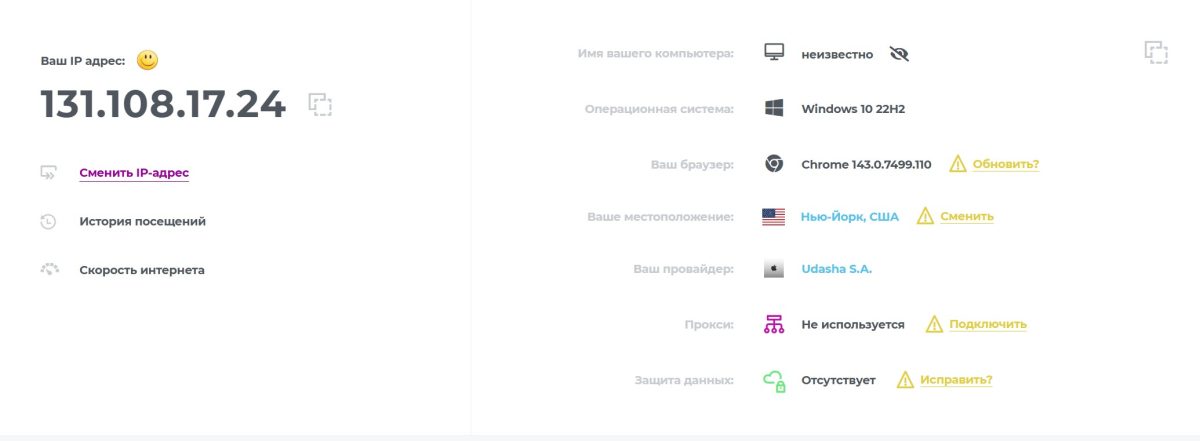
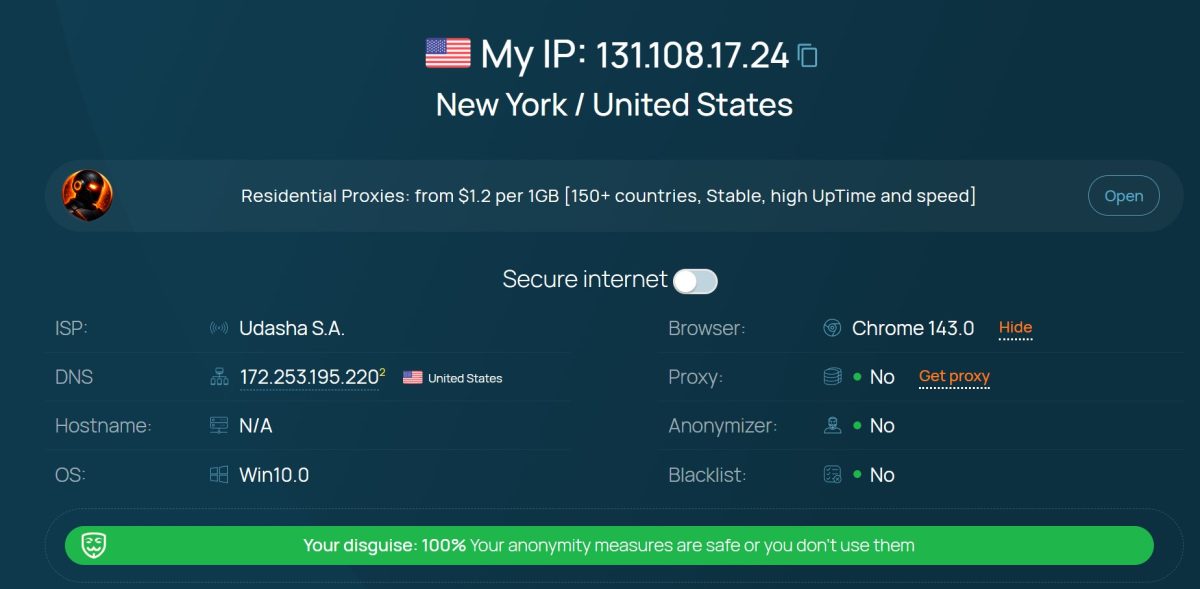
whoer.net provides extended anonymity checking. Shows your IP, detects proxy usage, checks for DNS leaks and WebRTC. If the service detects a proxy, it’ll be indicated in the results.
whatismyproxy.com is a specialized proxy detection service. Shows whether a proxy server is detected and displays HTTP headers that can identify it.
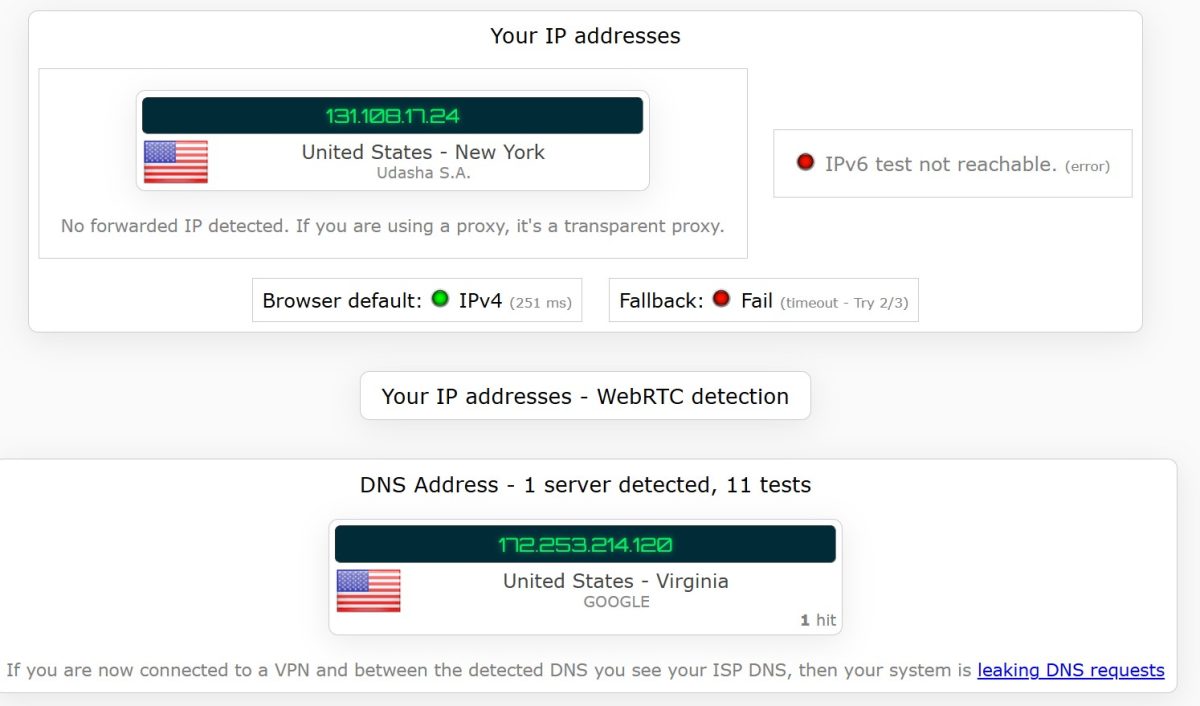
ipleak.net offers comprehensive leak testing: IP, DNS, WebRTC. If your real IP is “leaking” through the proxy, the service will show it.
How to Read the Results
Open 2ip.ru or whoer.net and compare the displayed IP with your real one. If you don’t know your real IP: disable the proxy (if you know how), refresh the page, and write down the IP. That’s your actual address.
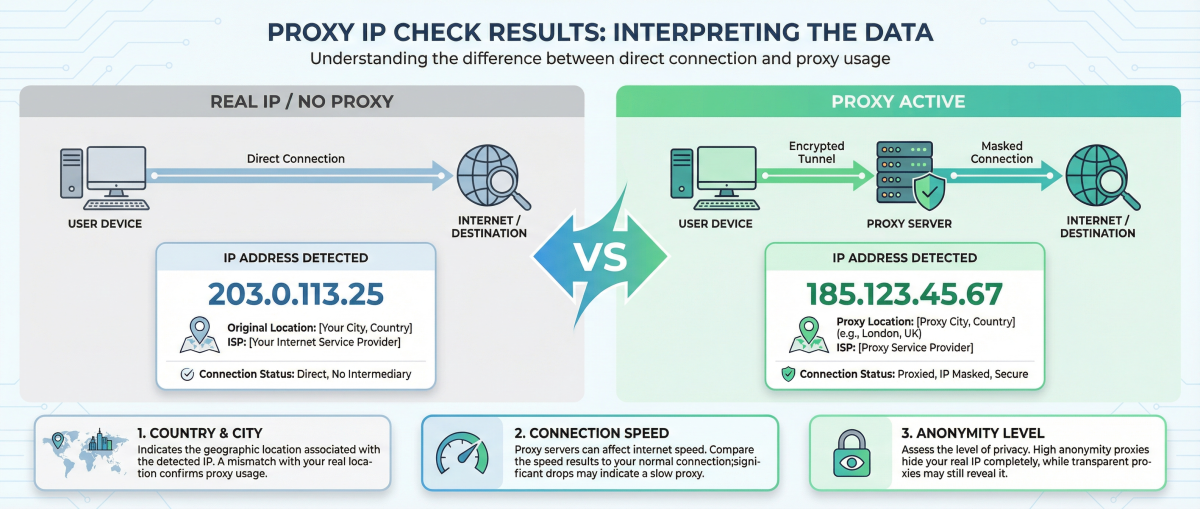
If the IP is different, the proxy is working. The service may also show:
- country and city associated with the proxy IP;
- connection type (datacenter, residential, mobile);
- anonymity level.
My advice: For a thorough check, use multiple services. Sometimes 2ip.ru doesn’t detect a proxy, but whoer.net does. Using several tools gives you a more accurate picture.
Standard Proxy Server Ports: Quick Reference
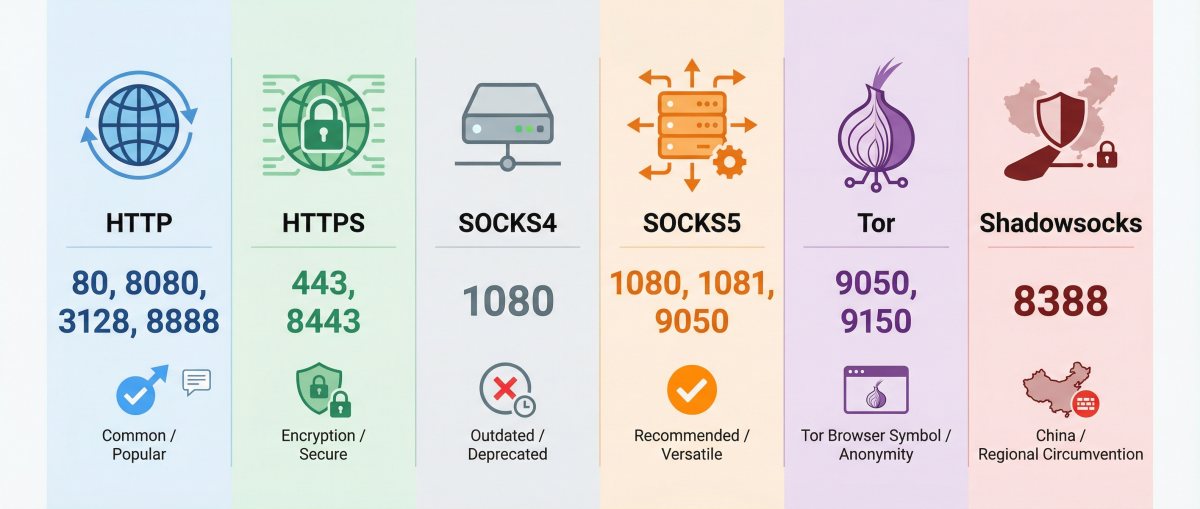
When setting up or troubleshooting a proxy, knowing typical port numbers comes in handy. If you don’t know your proxy’s port, start checking with these values.
| Protocol | Standard Ports | Notes |
|---|---|---|
| HTTP | 80, 8080, 3128, 8888 | Most common |
| HTTPS | 443, 8443 | With encryption |
| SOCKS4 | 1080 | Legacy, no authentication |
| SOCKS5 | 1080, 1081, 9050 | Universal, recommended |
| Tor | 9050, 9150 | For Tor Browser |
| Shadowsocks | 8388 | Popular in China |
The actual port can be anything. It depends on the specific proxy provider’s configuration. When you buy a proxy, the exact port is always specified in the connection details.
How to Find Proxy Port Using Command Line
If a proxy is configured on your computer, you can find its settings through Windows Command Prompt.
Method 1: Using netsh
Open Command Prompt as administrator and run:
netsh winhttp show proxy
The result will show the current proxy in IP:port format, for example:
Current WinHTTP proxy settings:


    Proxy Server(s): 192.168.1.100:8080
    Bypass List: <local>
Method 2: Using netstat
The netstat command shows active network connections. If a proxy is in use, you can see the connection to it:
netstat -an | findstr "ESTABLISHED"
Look for connections on typical proxy ports (8080, 3128, 1080) in the list.
Method 3: Checking Environment Variables
In PowerShell or Command Prompt:
echo %HTTP_PROXY%
echo %HTTPS_PROXY%
Or in PowerShell:
$env:HTTP_PROXY
$env:HTTPS_PROXY
If these variables are set, they’ll display the proxy address and port.
What to Do If You Can’t Find Your Proxy
Sometimes standard methods don’t show proxy settings even though you’re sure one is being used. Here are a few reasons and solutions.
- Proxy is configured at the router level. If the proxy is set up on your router, the settings on the device itself will be empty. Check your router’s web interface.
- A transparent proxy is being used. This type of proxy works invisibly and doesn’t require device configuration. You can only detect it through online IP checking services.
- Proxy is configured in a specific application. Browsers (especially Firefox), torrent clients, and messengers can have their own proxy settings. Check each application’s settings.
- VPN is masquerading as a proxy. Some VPN services technically work as proxies. Check if there are any active VPN connections.
- Proxy is configured via PAC file. Automatic configuration through a PAC script doesn’t explicitly show the address and port. Check “Automatically detect settings” in Internet options.
Frequently Asked Questions
What does a proxy server address look like?
A proxy address is an IP address in the format xxx.xxx.xxx.xxx (for example, 185.123.45.67) or a domain name (like proxy.example.com). The full format includes the port after a colon: 185.123.45.67:8080.
What’s my proxy server if I didn’t set one up?
Where can I get a proxy address and port?
There are several sources: free proxy lists (low quality, often don’t work), paid proxy services (more reliable, provide support), your company’s IT department (if you’re using a work computer). For serious tasks, I recommend picking a provider from our proxy service ratings.
How do I find the proxy server for a VPN?
VPN and proxy are different technologies. VPN creates an encrypted tunnel and doesn’t use proxy protocols (HTTP, SOCKS). However, some VPN clients support SOCKS5 proxy mode: check your VPN application settings.
How do I find the proxy server for a Wi-Fi network?
On computer: Control Panel, then Internet Options, then Connections, then LAN settings. On phone: Wi-Fi Settings, then network properties, then Advanced, then Proxy. On router: Router web interface, then WAN/Internet settings.
How do I find a website’s proxy?
Websites don’t use proxies in the typical sense. If you want to find out the IP address of the server hosting a website, use the command nslookup domain.com in Command Prompt or online services like whatismyipaddress.com.
Wrapping Up: Quick Reference for Finding Your Proxy
So, the main ways to find your proxy server and port depend on your device:
- On Windows 10/11: Settings, then Network & Internet, then Proxy. Alternative via command line:
netsh winhttp show proxy. - On Android: Settings, then Wi-Fi, then network properties, then Advanced, then Proxy.
- On Smart TV: Settings, then Network, then Proxy settings (path varies by manufacturer).
- On router: Web interface at 192.168.0.1 or 192.168.1.1, then WAN or Internet section.
- Online check: 2ip.ru, whoer.net, whatismyproxy.com will show your current IP and detect proxy usage.
| Task | Solution |
|---|---|
| Find proxy on PC | Windows Settings, Proxy section |
| Find proxy on phone | Wi-Fi Settings, Network properties |
| Check proxy online | 2ip.ru, whoer.net |
| Find port | Standard: 8080 (HTTP), 1080 (SOCKS5) |
| Find hostname on TV | Proxy provider dashboard |
If you need a reliable proxy for work, I recommend checking out our best proxy services rating. We’ve gathered trusted providers with different IP types: datacenter, residential, mobile, and ISP proxies. A quality proxy means more than just correct connection details; it means stable performance without blocks.



Great guide! I was confused about how to locate my proxy server address and port, but your step-by-step instructions made it super easy. Thanks for the clear explanations and helpful tips!