





 Why Trust Us?
ToProxyLab has been testing proxy services since 2025. We pay for most plans ourselves, and when a provider gives us test traffic we say so in the review — free traffic buys a place in the testing queue, nothing else. Every provider goes through the same speed, uptime and fraud-score checks, and we publish the real numbers, including the bad ones. A rating cannot be bought. Learn who we are and how we review proxies.
Why Trust Us?
ToProxyLab has been testing proxy services since 2025. We pay for most plans ourselves, and when a provider gives us test traffic we say so in the review — free traffic buys a place in the testing queue, nothing else. Every provider goes through the same speed, uptime and fraud-score checks, and we publish the real numbers, including the bad ones. A rating cannot be bought. Learn who we are and how we review proxies.
I used to have this annoying problem where I had to manually set up proxies on every device at home—phone, laptop, TV, gaming console. It was a pain: someone’s settings would get wiped after an update, someone else would forget to turn on the proxy, and on some devices (like Smart TVs) the setup process was a nightmare. That’s when I decided to configure the proxy directly on my router. Suddenly, every device on the network was automatically routed through a single server—and it turned out to be way easier than I expected.
In this article, I’ll share everything I’ve learned over several years of tinkering: from choosing the right proxy type and checking router compatibility to step-by-step setup instructions and troubleshooting common issues. Whether you’re just getting started or you’ve already tried setting up proxies and hit some roadblocks, this guide should help.
Proxy vs VPN: What’s the Difference and Which Should You Use on Your Router
Let me be upfront: proxies and VPNs are different technologies, even though both can change your IP address and bypass restrictions. Understanding this difference is crucial before you start configuring anything.
A VPN (Virtual Private Network) creates an encrypted tunnel between your device and a server. All traffic passes through this tunnel, which provides strong protection but puts extra load on your router’s CPU and can significantly slow down your connection.
A proxy server works differently: it simply redirects requests and masks your IP address. Encryption only comes into play with HTTPS or SOCKS5 with TLS support. On the plus side, proxies use fewer router resources and have minimal impact on connection speed.
| Feature | Proxy | VPN |
|---|---|---|
| Encryption | Partial (HTTPS/SOCKS5) | Full |
| Speed impact | Minimal | Noticeable (10-30%) |
| Router load | Low | High |
| Setup complexity | Medium | High |
| Router support | Widespread | Limited |
| Protection from interception | Medium | High |
If you need maximum security for online banking or handling sensitive data, go with a VPN. But proxies are more convenient when you want access control, traffic filtering, bypassing geo-blocks without installing apps on every device, or managing multiple social media accounts.
Why Set Up a Proxy on Your Router in the First Place
Before diving into the technical details, let’s look at the main use cases. Over years of working with proxies, I’ve identified several key reasons why router-level setup makes sense:
- Bypassing regional restrictions. Streaming services, gaming platforms, and certain websites restrict access based on location. A proxy on your router lets you bypass these restrictions for all devices at once.
- Hiding your real IP address. All devices on your home network access the internet through a single anonymous address, making tracking and targeted advertising much harder.
- Parental controls and filtering. You can block access to certain categories of websites or limit internet usage time for kids’ devices.
- Managing multiple accounts. SMM specialists and marketers use different proxies for different social media profiles to avoid getting flagged for multi-accounting.
- Testing and development. Web developers check how sites appear to users from different regions.
Benefits of Setting Up a Proxy on Your Router: A Deep Dive
When you configure a proxy directly on your router, you get some significant advantages over setting it up on each device individually:
- Centralized management. All devices on your network automatically route through a single proxy server. No need to mess with separate configurations on every smartphone, laptop, or tablet. This is especially useful for devices where proxy setup is difficult or impossible—gaming consoles, smart speakers, IoT devices.
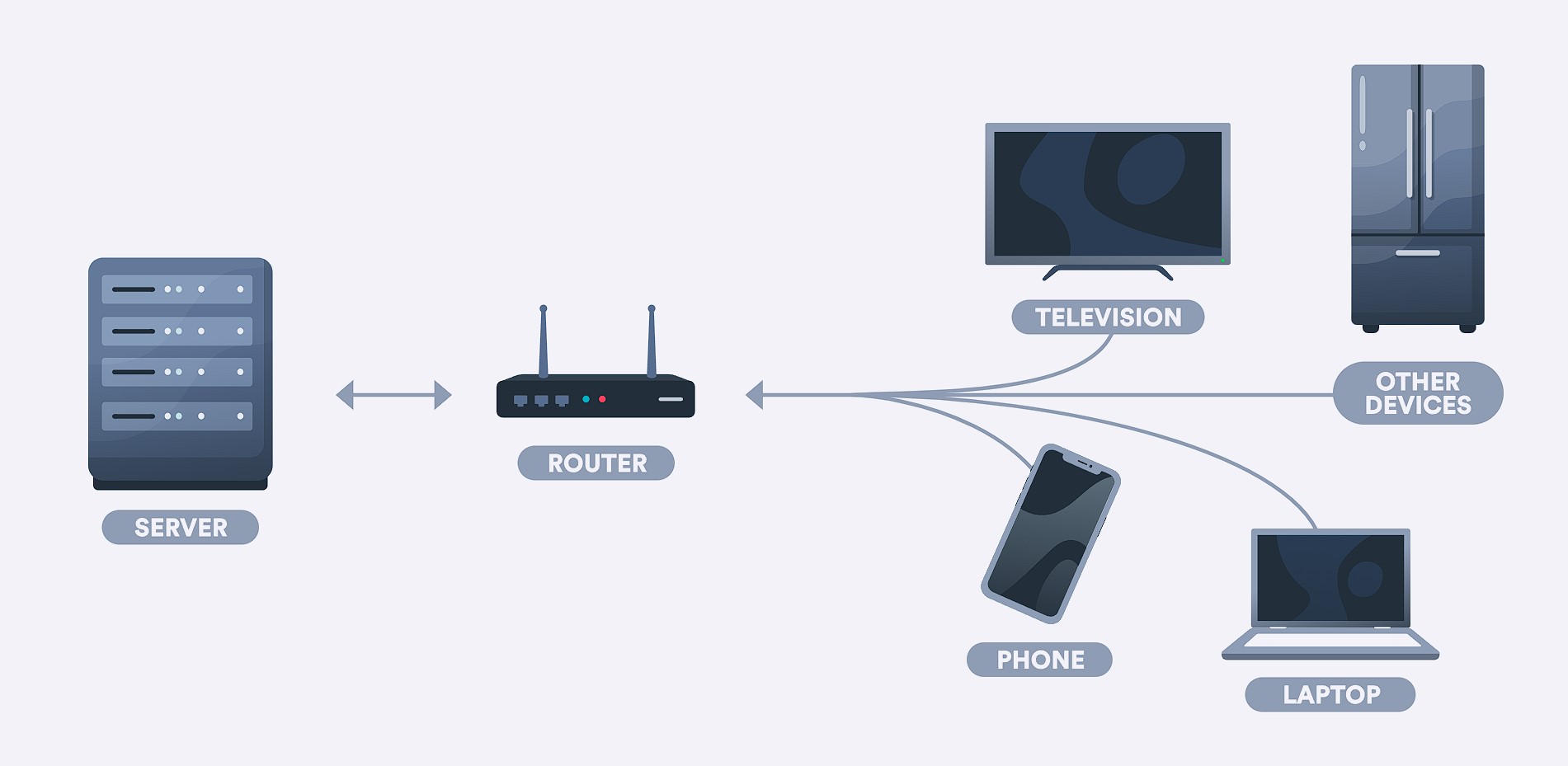
- Automatic IP masking. Even devices that can’t be configured manually (Smart TVs, gaming consoles, smartwatches) connect through an anonymous address. This is especially handy for streaming content from other regions.
- Flexible traffic filtering and control. Advanced firmware lets you set different rules for different devices: block social media on your kid’s tablet while keeping it accessible on your phone.
- Time savings. Set it up once and it works for years. When you need to change proxies, you only update the settings in one place instead of on a dozen devices.
- Better anonymity. All traffic from your home network goes through a single gateway, making it harder for outside observers to determine how many devices are connected and which ones they are.
From my own experience: when I moved my home network to a proxy, the setup took about 15 minutes, including testing. After that, everyone’s smartphones and laptops (7 devices total) immediately started using the new IP without any extra steps. I was especially happy that the Smart TV, which I could never configure before, also automatically connected through the proxy. It really saved me time and headaches.
Types of Proxy Servers for Routers: A Complete Overview
Choosing the right type of proxy is key—it determines how stable your connection will be and whether it’s compatible with your needs. After years of testing, I’ve tried all the main options and I’m ready to share my findings.
By Protocol
| Proxy Type | Use Cases | Pros | Cons |
|---|---|---|---|
| HTTP | Web browsers, simple requests | Easiest setup, wide support | Only works with HTTP traffic, no encryption |
| HTTPS | Secure web connections | Data encryption, works with SSL | Limited to web traffic |
| SOCKS4 | Basic applications | More versatile than HTTP | No UDP support or authentication |
| SOCKS5 | Apps, games, messengers, torrents | Universal protocol, UDP support, authentication | Slightly more complex setup, not all routers support it |
My pick: I exclusively use SOCKS5 for my router. This protocol works with all types of traffic, including games, messengers, and streaming services. HTTP proxies only handle browser traffic, which makes them useless for most modern needs.
By Authentication Method
| Auth Type | Details | When to Use |
|---|---|---|
| IP whitelist | Access only allowed from specific IP addresses | Static IP from your ISP, high security requirements |
| Username/password | Requires credentials | Dynamic IP, multiple connection points |
| No authentication | Open access | Testing only, not safe for regular use |
By IP Address Type
This is one of the most important factors—it directly affects stability and how likely you are to get blocked:
- Datacenter (IPv4/IPv6). The cheapest option. These IP addresses belong to data centers, not real users. They’re fine for basic tasks but are easily detected and blocked by social networks and streaming services. If you need something fast and budget-friendly, check out the IPv4 proxy rankings.
- Residential. IP addresses from real home users. Nearly undetectable, ideal for social media work and scraping. More expensive but highly stable. More details in the residential proxy review.
- Mobile. IP addresses from mobile carriers. Highest trust level from services since millions of real users share the same IP pools. Best choice for SMM and affiliate marketing. The mobile proxy rankings can help you pick a provider.
- ISP proxies. A middle ground between datacenter and residential. IPs belong to internet providers but are hosted in data centers. Good speed and stability at a reasonable price. For long-term use, I recommend checking the ISP proxy rankings.
From my own experience: for my home router, I went with SOCKS5 using IP whitelist authentication from an ISP provider. Sure, it took a bit more time to set up—I had to add my home IP to the whitelist. But now I don’t have to enter a username and password every time, and the proxy has been running smoothly for over a year without a single hiccup. For Instagram and Facebook work, I use separate mobile proxies—that’s critical for those platforms.
Does My Router Support Proxies? How to Check

Not all routers support proxies out of the box. Before buying a proxy, make sure your hardware can handle it. Here’s what I’ve found after testing over a dozen different models:
Routers with Built-in Proxy Support
- Asus (RT series, ROG). Most models have built-in proxy support in the WAN section. The interface is intuitive with fields for IP, port, and authentication. Models running Asuswrt-Merlin firmware offer even more options.
- Keenetic. Some of the best routers for proxy work. SOCKS5 and HTTP proxy support is available on almost all models. Setup takes 2-3 minutes.
- MikroTik. Professional-grade equipment with maximum flexibility. Best for advanced users who want full control over their network.
Limited Support
- TP-Link. Depends on the model and firmware. Budget models (TL-WR series) usually don’t support proxies. Higher-end ones (Archer series) might have the feature, often with limitations.
- D-Link. Similar to TP-Link—support isn’t universal. I’d recommend checking the specs for your specific model.
- Xiaomi. Proxy support is available through the Chinese interface or third-party firmware. The standard international firmware usually doesn’t have this feature.
No Proxy Support
- Budget ISP-provided routers. Routers from providers like Comcast, AT&T, or Verizon typically have stripped-down firmware without proxy configuration options.
- Older models. Routers more than 5-7 years old often don’t receive firmware updates and may not support modern protocols.
How to Check Support in Practice
The most reliable way is to log into your router’s web interface and look for the relevant settings:
- Open your browser and enter your router’s address (usually
192.168.0.1or192.168.1.1). - Log in with your username and password (often admin/admin or printed on a sticker on the router).
- Navigate to WAN, Internet, Network, or Advanced Settings.
- Look for options like: “Proxy,” “Proxy Server,” “SOCKS,” or “Proxy Settings.”
How I knew my router supported proxies: in the network settings, there was a separate WAN tab with fields for “Proxy Server,” “Port,” “Username,” and “Password.” After entering the info and saving, everything worked on the first try.
Solution for Unsupported Routers: Custom Firmware
If the stock firmware doesn’t have the feature, you can install custom firmware. This unlocks advanced capabilities, including flexible network rules and SOCKS5 support:
- OpenWRT – the most popular open-source firmware. Supports a huge number of router models and offers professional-level functionality.
- DD-WRT – an alternative to OpenWRT with a simpler interface. Good choice if you don’t want to dive deep into configuration.
- Padavan – popular firmware for Asus routers and some other brands. Known for stability and rich feature set.
Important warning: flashing custom firmware on a router is risky. I once nearly bricked my TP-Link Archer C7 by picking the wrong firmware version. Recovery took several hours and required a special cable. If you don’t have experience with firmware, either get help from someone who does or buy a router with native proxy support.
Getting Ready to Configure Your Proxy: A Step-by-Step Checklist
Before jumping into the actual setup process, it’s important to get everything ready. In my experience, 90% of proxy issues happen during preparation—wrong credentials, a dead proxy, or router incompatibility.
Where to Get the Proxy IP Address and Port
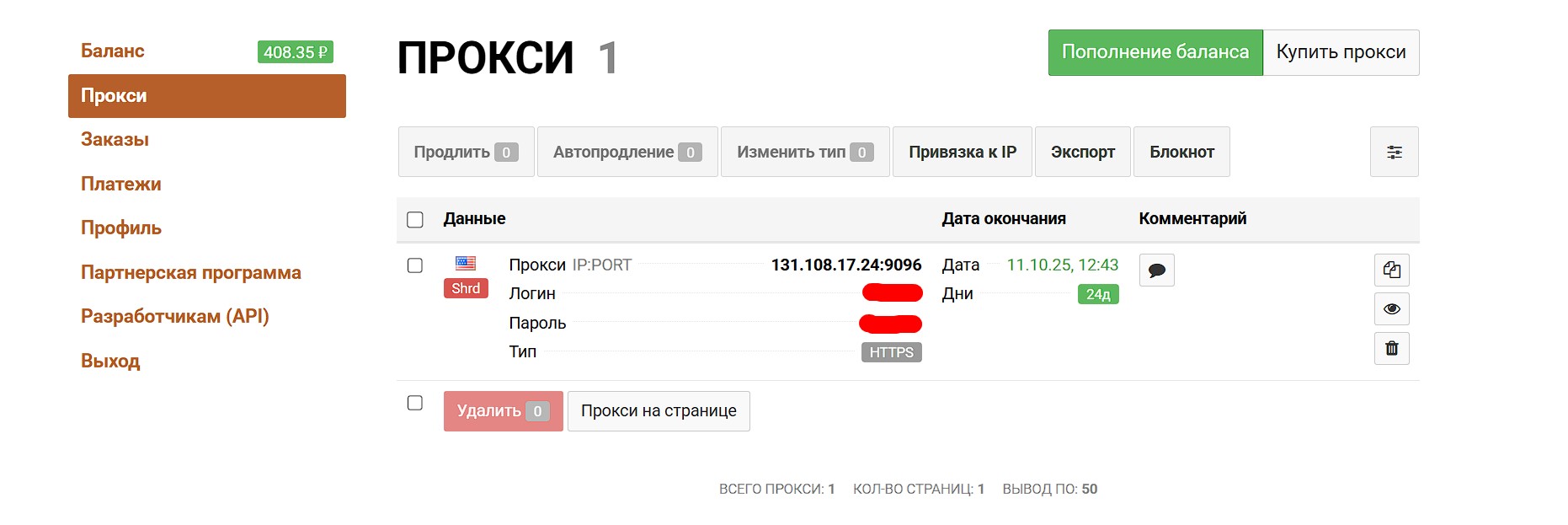
Paid services are the most reliable option. After payment, you’ll get all the connection details (IP, port, username, password) in your dashboard. I’ve tested many providers from the IPv4 proxy rankings, and getting your credentials takes no more than a minute after purchase.
Free proxies – I strongly advise against using them for regular use. They’re published in open lists, but reliability is extremely questionable. In all my time testing, I’ve never found a free proxy that worked consistently for more than a week. Use them only for one-off testing.
How to Test Your Proxy Beforehand
Before entering anything into your router, always verify that the proxy is working. This will save you time and frustration:
- Through your browser. Configure the proxy in your browser (Firefox has built-in proxy settings) and try opening a few websites.
- Dedicated services. Proxy Checker, hidemy.name checker, or similar tools let you test without any configuration.
- Command line. For advanced users:
curl --proxy socks5://ip:port https://api.ipify.org
If the proxy doesn’t respond, throws an error, or is too slow (ping over 500 ms), there’s no point configuring it on your router. Contact your provider’s support or pick a different server.
What You Need to Know About Login and Password
Most paid proxies require authentication. There are a few things to keep in mind:
- Input format. Sometimes the username and password go in separate router fields, sometimes they’re part of the address itself:
user:pass@ip:port. - Special characters. Passwords containing special characters (@, :, /) can cause problems. I had a situation where a password with “@” wouldn’t work on my router—had to change it in the provider’s dashboard.
- IP whitelisting. Many services let you add your IP to a whitelist, eliminating the need for credentials. This is more convenient but only works if you have a static IP from your ISP.
My Pre-Setup Checklist
- Verify the proxy works through a browser or Proxy Checker.
- Confirm your router supports entering IP, port, and authentication.
- Gather all the details: IP address, port, username, password (or add your home IP to the whitelist).
- Write down your current router settings in case something goes wrong.
- Make sure you can access the router’s web interface (know the address, username, and password).
- If you’re planning to use OpenWRT, verify firmware compatibility with your router model.
- Have your proxy provider’s support contact info handy.
Step-by-Step Guide: How to Set Up a Proxy on Your Router
Now for the fun part—the actual setup. I’ll cover several methods depending on your router type and technical skill level.
Method 1: Through the Router’s Web Interface (for routers with native support)
The simplest method, suitable for Asus, Keenetic, and other routers with built-in proxy support.
- Connect to your router and open a browser.
Enter your router’s IP address in the address bar. This is usually192.168.0.1,192.168.1.1, or192.168.31.1(for Xiaomi). You can also find the address on the sticker on the bottom of your router.
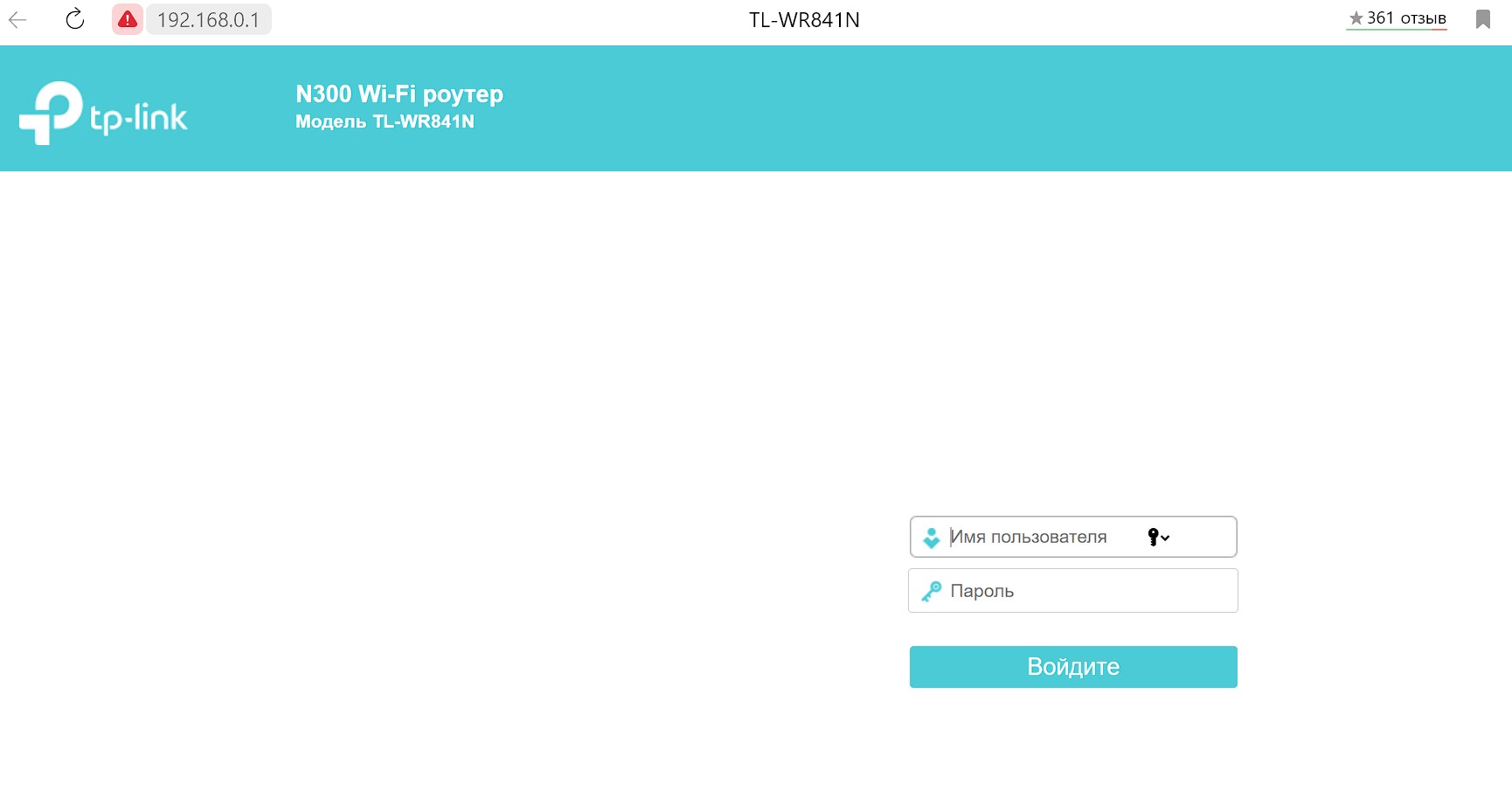
- Log in.
Enter your username and password. Common defaults: admin/admin, admin/password, or whatever’s printed on the router sticker. If you changed the password and forgot it, you’ll need to factory reset the router. - Find the network settings section.
Depending on the manufacturer, this might be: WAN, Internet, Network, Network Settings, or Advanced Settings. - Look for proxy settings.
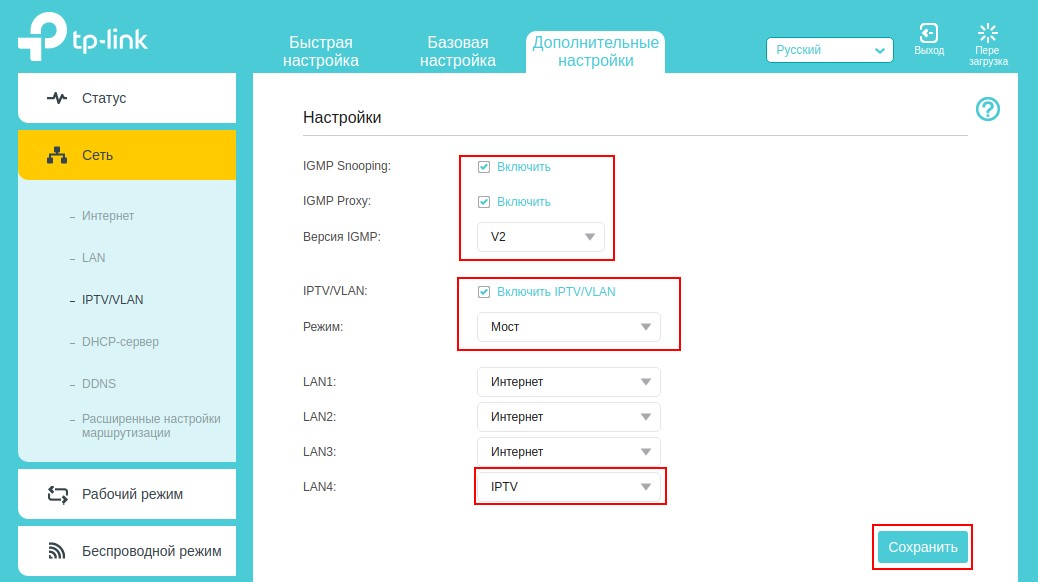
This is usually a separate tab or section labeled “Proxy Server,” “SOCKS Proxy,” or “Proxy Settings.” On some routers, these settings are under “IPTV/VLAN.” - Enter your proxy server details.
Fill in the fields:
– Proxy Server / IP Address: the proxy IP (e.g., 185.xxx.xxx.xxx)
– Port: the proxy port (e.g., 1080 for SOCKS5)
– Protocol / Type: select SOCKS5 or HTTP depending on your proxy
- Enter the username and password if required.
Find the “Username” and “Password” fields and enter the credentials from your proxy provider. - Save your changes.
Click “Save,” “Apply,” or the equivalent. Some routers apply settings instantly; others require a reboot. - Reboot the router.
I recommend rebooting even if the settings appear to take effect immediately. The button is usually in “System” or “Maintenance.”
After these steps, all your home network traffic will automatically route through the proxy. Verify it’s working by visiting an IP checker site (like 2ip.ru or whoer.net) from any device on your network.
Method 2: Configuration via OpenWRT / DD-WRT Firmware
If your router doesn’t support proxies in its stock firmware but is compatible with OpenWRT or DD-WRT, this method opens up advanced configuration options.
Prerequisites:
- A router compatible with OpenWRT (check the official website).
- OpenWRT firmware already installed.
- Basic command line skills.
- An SSH client (PuTTY for Windows or the built-in terminal for Mac/Linux).
Step-by-Step Instructions for OpenWRT:
- Connect to your router via SSH.
Open a terminal and type:ssh root@192.168.1.1
Enter your root password (set during OpenWRT configuration). - Install the required packages.
For HTTP proxy:opkg update && opkg install tinyproxy
For SOCKS5 (recommended):opkg update && opkg install redsocks - Configure the redsocks config file.
Open the configuration file:vi /etc/redsocks.conf
Example configuration for SOCKS5:base {
log_debug = off;
log_info = on;
daemon = on;
redirector = iptables;
}
redsocks {
local_ip = 0.0.0.0;
local_port = 12345;
ip = YOUR_PROXY_IP;
port = YOUR_PROXY_PORT;
type = socks5;
login = "YOUR_LOGIN";
password = "YOUR_PASSWORD";
} - Set up iptables to redirect traffic.
Create rules to route traffic through redsocks. This requires adding rules to/etc/firewall.user. - Start the service and verify.
/etc/init.d/redsocks start/etc/init.d/redsocks enable
Tip: if you’re not comfortable with OpenWRT’s command line, try using the LuCI web interface instead. After installing the packages, a graphical interface for proxy configuration will appear in the “Services” section. This makes things much easier.
Method 3: Transparent Proxy via Shadowsocks
Shadowsocks is a modern protocol that provides good speed and security. Many proxy providers offer Shadowsocks as an alternative to SOCKS5.
- Install the shadowsocks-libev package on OpenWRT:
opkg install shadowsocks-libev-ss-redir - Configure it with your provider’s details.
- Set up iptables rules for transparent proxying.
My advice: if you’re new to routers and firmware, start with Method 1. Custom firmware gives you more options but requires technical knowledge and time to learn.
Setting Up Proxies for Specific Devices Through Your Router
Sometimes you don’t want the proxy to cover your whole network—just specific devices. For example, your Smart TV for streaming, but not your work laptop where a proxy might cause issues with corporate services.
Routers with advanced firmware (OpenWRT, Asuswrt-Merlin, Keenetic) let you set up this kind of flexible routing:
Binding a Proxy to a MAC Address
- Find the device’s MAC address (usually in the device’s network settings or in your router’s “Connected Devices” section).
- Create a rule in iptables or through the router interface that routes traffic from that MAC through the proxy.
- Other devices continue to work without the proxy.
Different Proxies for Different Needs
- You can set up a fast proxy for your gaming console (low latency matters more than anonymity).
- A mobile proxy for Smart TV and streaming services (high trust level, access to regional content).
- A residential proxy for work devices where stability is key.
From my own experience: I have a separate proxy on my Smart TV using a MAC address rule. This makes Netflix see a connection from a different region, unlocking an expanded movie library. Meanwhile, my other devices run on local internet without the proxy—banking apps and work services don’t complain.
Setting Up Access Policies
Advanced routers let you create complex policies:
- By time: proxy activates only at certain hours (e.g., evenings for streaming).
- By domain: only traffic to specific sites goes through the proxy.
- By traffic type: HTTP/HTTPS through the proxy, UDP (games, voice calls) goes direct.
Testing Your Router Proxy: How to Make Sure Everything’s Working
After setup, it’s crucial to verify that the proxy is actually working. I’ve had situations where settings were saved but traffic continued going direct due to a configuration error.
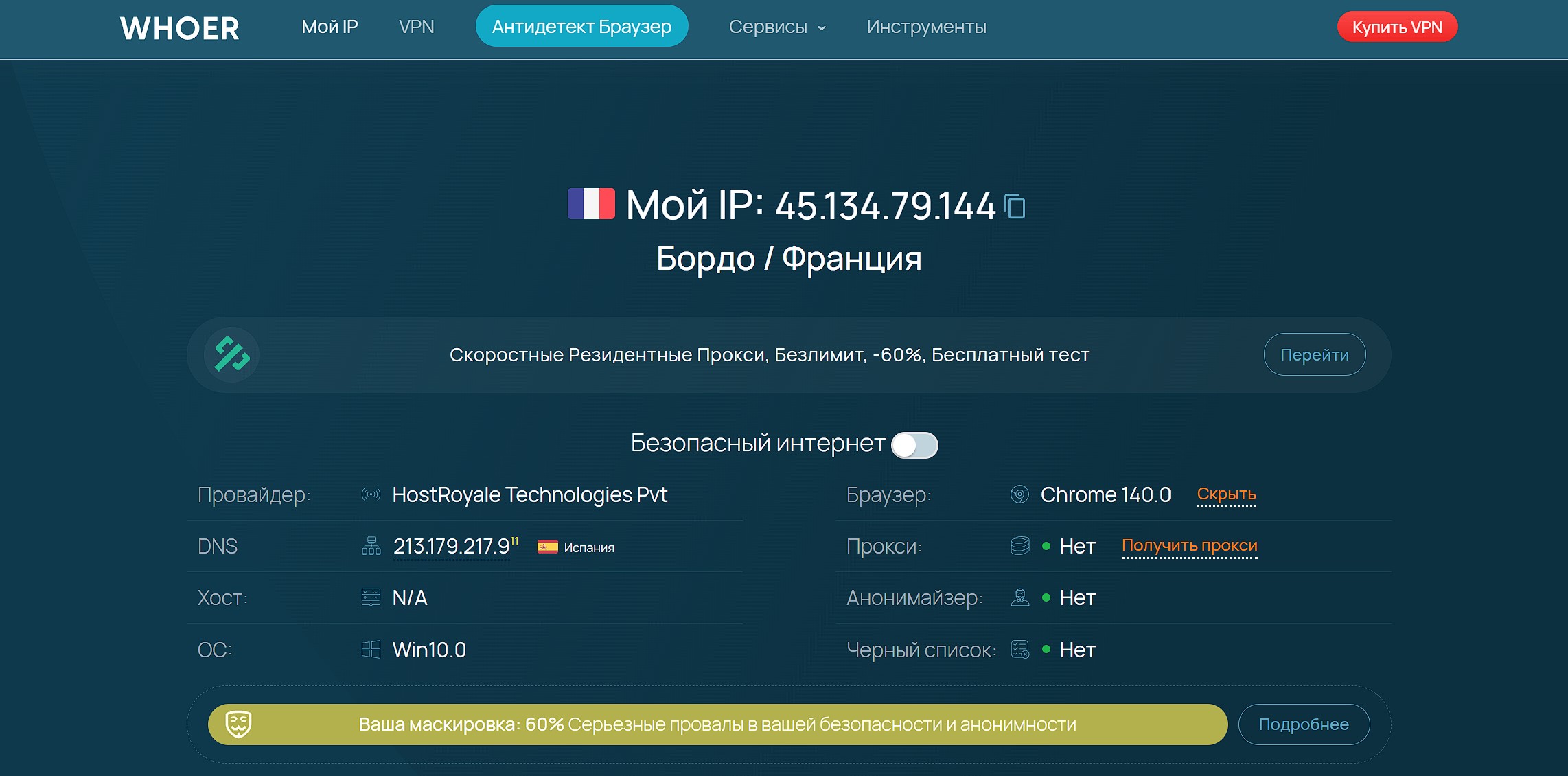
Checking Your IP Address Changed
The simplest and most reliable method is to check your IP through dedicated services:
- 2ip.ru – shows your IP, country, provider, and other info.
- whoer.net – extended anonymity check, reveals DNS and WebRTC leaks.
- ipleak.net – detailed leak testing, including torrent clients.
If the displayed IP matches your proxy server’s address rather than your real one, the setup is correct.
Testing Connection Speed
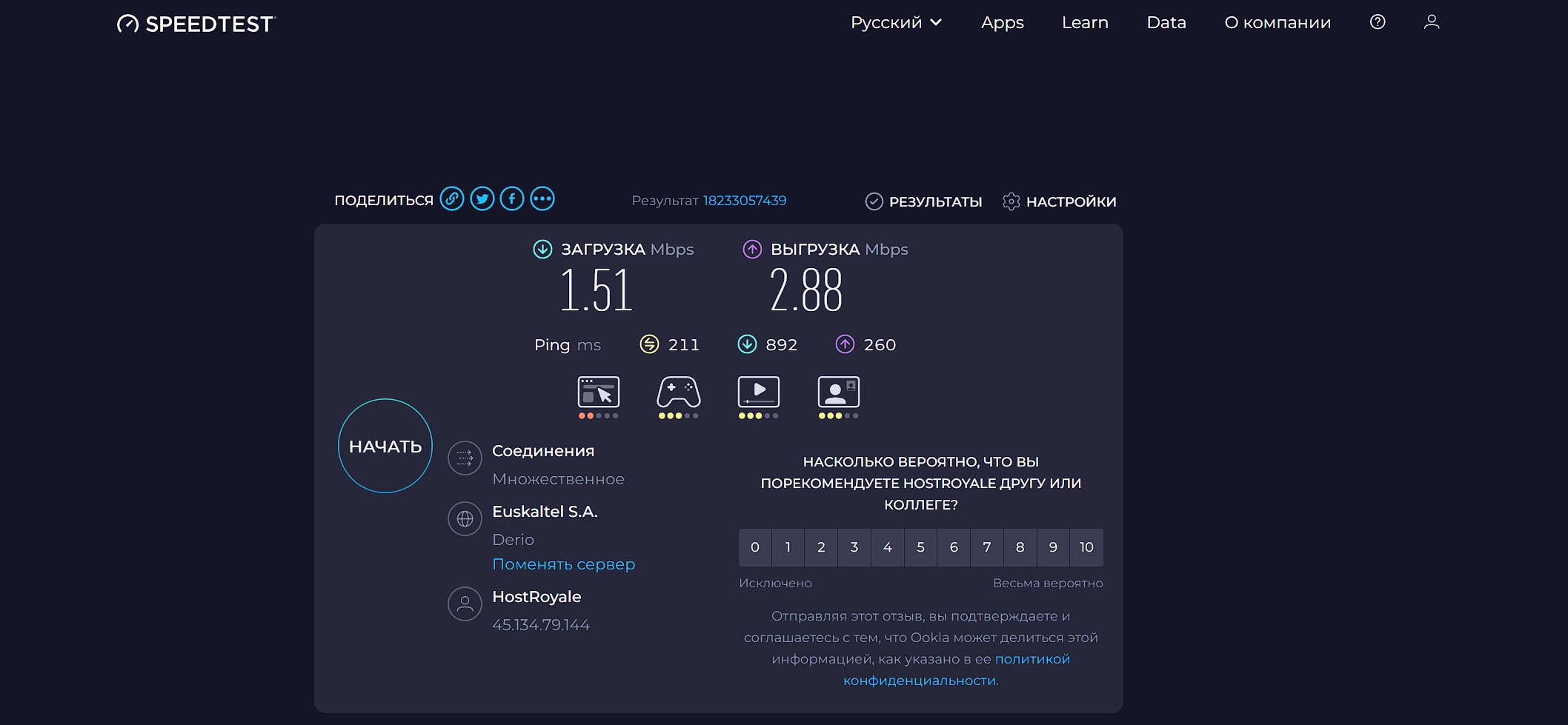
A proxy can affect your internet speed, especially if the server is far away. I recommend checking:
- Speedtest.net – classic test for download, upload, and ping.
- Fast.com – simple test from Netflix, good for measuring actual streaming speed.
Compare results with the proxy on and off. A 10-20% speed drop is normal. If speed drops more than 50%, you might want to try a different server or provider.
Testing Access to Blocked Resources
If your goal is bypassing geo-restrictions, try opening a site that was previously unavailable. If it loads, the proxy is working correctly.
Checking for Leaks
This is something many people overlook. Even with a working proxy, your real IP can leak through:
- DNS requests. Use services like dnsleaktest.com to check.
- WebRTC. This browser technology can expose your real IP. Check on whoer.net.
- IPv6. If IPv6 is enabled and not routed through the proxy, your real address may leak.
My Verification Routine
- Open 2ip.ru – confirm the IP has changed.
- Run Speedtest – make sure speed is acceptable.
- Check whoer.net – look for DNS and WebRTC leaks.
- Open a previously blocked site – confirm bypass is working.
- Test from multiple devices on the network – make sure the setup works for everyone.
Common Problems and How to Fix Them: A Complete Troubleshooting Guide
Setting up a proxy on a router isn’t always smooth sailing. Over the years I’ve run into plenty of issues and figured out how to solve them. Here are the most common ones:
Problem 1: No Internet After Setup
Symptoms: after saving settings, pages won’t load, apps show network errors.
Possible causes and solutions:
- Wrong proxy details. Double-check the IP address and port—a single extra digit will break the connection. Copy the details directly from your provider’s dashboard.
- Proxy is down. Disable the proxy on your router and test it through your browser or a Proxy Checker.
- Wrong protocol. If you selected HTTP proxy but your provider gave you SOCKS5, the connection won’t work.
- Port blocked. Some ISPs block non-standard ports. Try a proxy on port 80, 443, or 8080.
Problem 2: Authentication Error
Symptoms: the proxy won’t accept your credentials, logs show “Authentication failed” or “403 Forbidden.”
Solutions:
- Check if your router supports authentication. Not all models have username/password fields. In that case, use IP whitelisting instead (add your home IP to the whitelist in your provider’s dashboard).
- Special characters in password. I once had a password with “@” and “:” that my router wouldn’t accept. The fix was changing the password in my provider’s dashboard to something simpler (letters and numbers only).
- Wrong format. Some routers want input as
user:pass@ip:port, others use separate fields.
Problem 3: Significant Speed Drop
Symptoms: internet works but it’s really slow. Videos buffer endlessly, pages take 10-15 seconds to load.
Causes and solutions:
- Distant server. A proxy in another country can add 100-300 ms to your ping. Pick a server closer to your location.
- Overloaded server. Free and cheap proxies often suffer from congestion. Solution: paid service with a dedicated IP.
- Underpowered router. Processing proxy traffic takes resources. Budget models can become a bottleneck.
- Check speeds. Proxy rankings usually include real-world speed information for different providers.
Problem 4: Some Apps Don’t Work
Symptoms: browser works through the proxy, but banking apps, games, or messengers don’t.
Causes:
- HTTP proxy. Only handles web traffic. Apps need SOCKS5.
- Service blocking proxies. Banking apps and some games actively detect and block proxy connections as a security measure.
- UDP traffic. Voice calls and games often use UDP, which is only supported by SOCKS5.
Solution: for critical apps, set up exceptions (so their traffic goes direct) or use a separate device without the proxy.
Problem 5: Constant Connection Drops
Symptoms: the proxy keeps disconnecting, forcing router reboots.
Solutions:
- Unstable proxy. Free and cheap proxies often drop. Switch to a premium provider.
- Connection timeout. Some proxies disconnect idle connections. Configure keep-alive on your router.
- Router issues. Overheating or memory overflow can cause drops. Try updating the firmware.
My experience: I once had constant disconnections while streaming video on my Smart TV. Turned out the proxy had too short a timeout—it was cutting “idle” connections even though video was still buffering. The solution was switching providers. After moving to an ISP proxy, the problem disappeared completely, and I’ve been streaming without a single drop for over a year.
Problem 6: IP Doesn’t Change After Setup
Symptoms: settings are saved, but 2ip.ru still shows your real IP.
Solutions:
- Clear browser cache and your device’s DNS cache.
- Reboot the router and your device.
- Check if the setting is actually enabled. Some routers require you to check an “Enable Proxy” box in addition to entering the details.
- WebRTC leak. Disable WebRTC in your browser or use an extension to block it.
Alternatives to Router-Level Proxy Setup
A proxy on your router is a convenient solution, but it’s not right for every situation. Here are some alternatives I also use depending on the circumstances:
VPN on Router
If your top priority is security and data protection, a VPN on your router is the better choice. All traffic gets encrypted, which is especially important for online payments and sensitive information.
Pros: full encryption, protection from data interception.
Cons: more complex setup, noticeable speed reduction, high load on router CPU.
Proxy on Individual Devices
Sometimes it’s easier to set up a proxy directly on your phone or computer without touching the router. I use this approach when traveling and need to quickly bypass restrictions on my smartphone connected to hotel Wi-Fi.
Pros: no router access needed, quick setup.
Cons: have to configure each device separately.
Browser Extensions
For simple browser-based restriction bypassing, a proxy extension is enough. Setup takes a minute, and toggling it on/off is one click.
Pros: maximum simplicity, doesn’t affect other apps.
Cons: only works in the browser.
When NOT to Use a Router Proxy
- Banking operations. Many banks block proxy access as suspicious activity.
- Confidential communications. For maximum security, use a VPN.
- Online games with anti-cheat. Some games ban accounts for proxy use.
- Corporate services. VPN connections to work networks may conflict with a router proxy.
Choosing the Right Proxy for Your Router
Based on my experience, here are my recommendations for choosing a proxy depending on your needs:
| Task | Recommended Proxy Type | Why |
|---|---|---|
| Bypassing website blocks | ISP or datacenter IPv4 | Good balance of price and quality, sufficient for most sites |
| Streaming (Netflix, Disney+) | Residential or mobile | High trust level, not detected by services |
| Social media management (SMM) | Mobile | Minimal risk of account bans |
| Scraping and SEO | Residential with rotation | Different IP for each request, bypasses anti-bot protection |
| General anonymity | ISP proxies | Stability and good speed at a reasonable price |
Frequently Asked Questions
Can I use free proxies on my router?
Technically yes, but I strongly advise against it. Free proxies are unstable, slow, and may intercept your traffic. In all my years of testing, I’ve never found a free proxy that worked reliably for more than a week. For your router, go with paid services—even cheap datacenter proxies starting at $1-2/month work way better.
Which protocol is better for routers: HTTP or SOCKS5?
SOCKS5, hands down. HTTP proxies only handle web traffic (browsers), while SOCKS5 supports all types of connections: games, messengers, streaming services, torrents. If your router supports both—go with SOCKS5.
Will the proxy work on Smart TV and gaming consoles?
Yes, that’s one of the main advantages of setting up a proxy on your router. Smart TVs, PlayStation, Xbox, Apple TV, and other devices that can’t be easily configured manually will automatically work through it. That’s exactly how I set up access to Netflix’s expanded library on my TV.
How much does a proxy slow down my internet?
Depends on proxy quality and server distance. Good paid proxies add 5-15% to load times—barely noticeable for regular use. Free or overloaded proxies can cut speed by 50% or more. Choose servers geographically close to you and providers with good speed reviews.
My router doesn’t support proxies. What can I do?
You have several options: install custom firmware (OpenWRT, DD-WRT) if your router is compatible; buy a router with native support (Keenetic, Asus); configure proxies on individual devices; or use a separate device (like a Raspberry Pi) as an intermediate proxy server between your router and the internet.
Is using a proxy on my router safe?
With paid services from reputable providers, yes. But keep in mind that proxies don’t encrypt all traffic like a VPN does. For banking and sensitive data, use a VPN or direct connection. Also, always use proxies with authentication so outsiders can’t use your connection.
Can I set up different proxies for different devices?
Yes, but it requires advanced configuration. On routers with OpenWRT or Asuswrt-Merlin, you can create rules based on device MAC addresses. For example, Smart TV goes through one proxy while the laptop goes direct or through another. I use this setup to separate streaming and work traffic.
Which is better: proxy or VPN on my router?
Depends on your goal. Proxy: less impact on speed, easier setup, good for bypassing blocks and changing IP. VPN: full encryption, better data protection, but higher router load and more noticeable speed drop. For streaming and bypassing geo-restrictions—proxy. For privacy and secure online payments—VPN.
Final Thoughts: Is a Router Proxy Worth the Effort?
After several years of using a proxy on my router, I can say this: for certain tasks, it’s an excellent solution that makes life noticeably easier. But it’s important to understand the limitations and pick the right tool for the job.
| Pros of Router Proxy | Cons of Router Proxy |
|---|---|
| Set it up once and it works on all devices | Not all routers support proxies natively |
| Perfect for families or small offices | Possible speed drops (5-20%) |
| Automatic IP change without apps | Not all apps work properly through proxies |
| Works on devices that can’t be configured manually (Smart TVs, consoles) | Banking apps may block access |
| Flexible traffic filtering and control | Requires username/password or whitelist setup |
| Saves time vs. configuring each device | Advanced configuration requires technical knowledge |
| Works with both Wi-Fi and wired connections | Custom firmware carries bricking risk |
My Final Recommendations Based on Experience
- A router proxy is a great choice if you need quick access to blocked sites, want to change the IP for your entire home network, or need traffic control for your family.
- Go with a VPN if security is your priority, you’re handling sensitive data, or using financial services.
- Use paid proxies—even budget options from reputable providers work far more reliably than free ones.
- SOCKS5 beats HTTP—it works with all traffic types, not just browsers.
- Start with the simple method—if your router supports proxies in its stock settings, don’t complicate things with custom firmware.
- Always verify it’s working after setup using 2ip.ru or whoer.net.
If you have any questions about setup or choosing a proxy, drop them in the comments. I’ll do my best to help based on my experience.